
KNOWLEDGE · how to choose smart WiFi LED bulbs
How to Choose Smart Wi-Fi LED Bulbs for Different Markets
Choose a smart Wi-Fi LED bulb by its actual app and onboarding experience first, then confirm network band, hub needs, lighting functions, voltage and base for the destination market. Test pairing, reset and behaviour after internet or power interruption. Do not claim platform compatibility until the exact model and app support it.Published August 30, 2026 · Updated November 14, 2026 · Shieldaily Editorial Team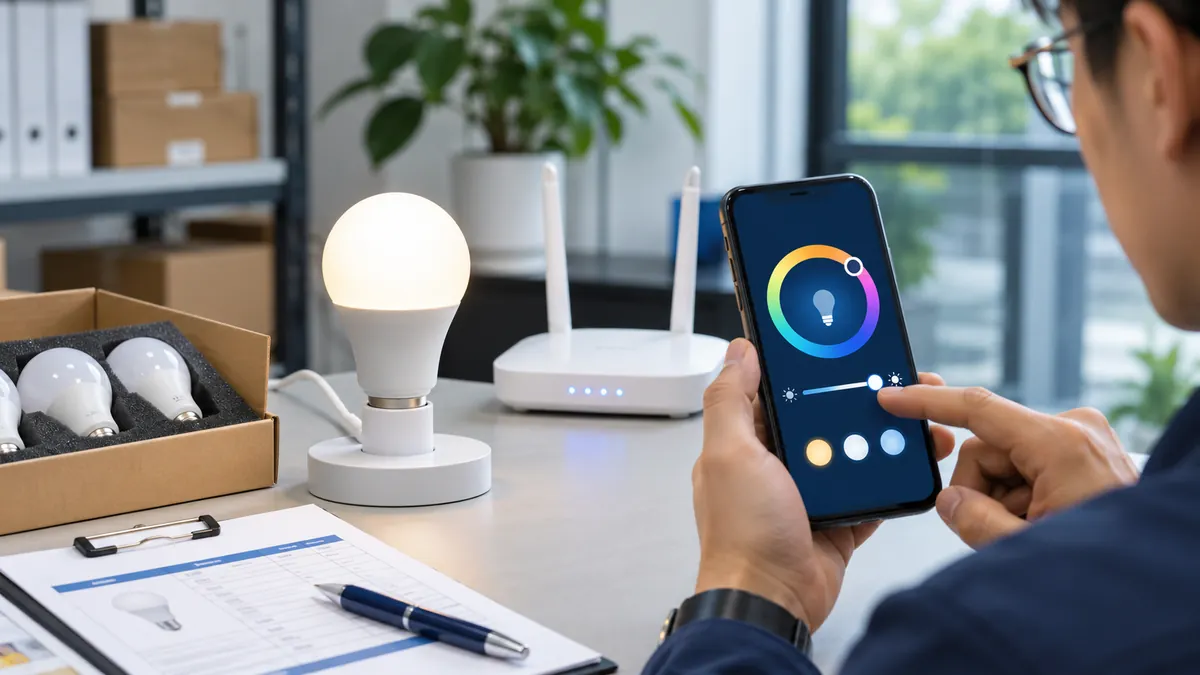
A connected bulb is a product-and-software experience, not only a lamp with a Wi-Fi label. Buyers need to know what a customer must install, which network is supported and which functions continue when connectivity fails.
Different markets can also require different electrical formats, languages and app availability. Use a sample with the intended router and customer instructions before the box, listing or purchase order is approved. Keep the tested app and firmware version with the SKU so support instructions match the product shipped.
Start with the App and User Experience
Ask for the app name, installation flow, account requirement, supported phone platform and language for the destination market. Follow the instructions as a first-time customer would. A useful smart-bulb range needs clear reset and support steps, not only a list of advanced features. Record the app version and model used in testing.
Compare product options: Product range
Confirm Wi-Fi and Network Requirements
Check the network frequency band, router conditions and any permissions required by the offered model. Do not infer support for every home network from the word Wi-Fi. Test pairing with a representative router and note what happens when the phone moves to another network. Packaging should state only the supported setup conditions.
Hub-Free and Hub-Based Options
Some connected systems pair directly with a supported router; others need a separate bridge or hub. Confirm which equipment is required and whether it is in the selling unit. A product that needs a hub should not be advertised as a stand-alone bulb. Include setup hardware and instructions in the quotation comparison.
Check the connected experience
| Compare | Buyer check |
|---|---|
| First setup | Pair the selected bulb with the intended app and network. |
| Everyday control | Test the functions actually offered on that model. |
| Interruption | Check reconnection and the bulb's behaviour after power or network changes. |
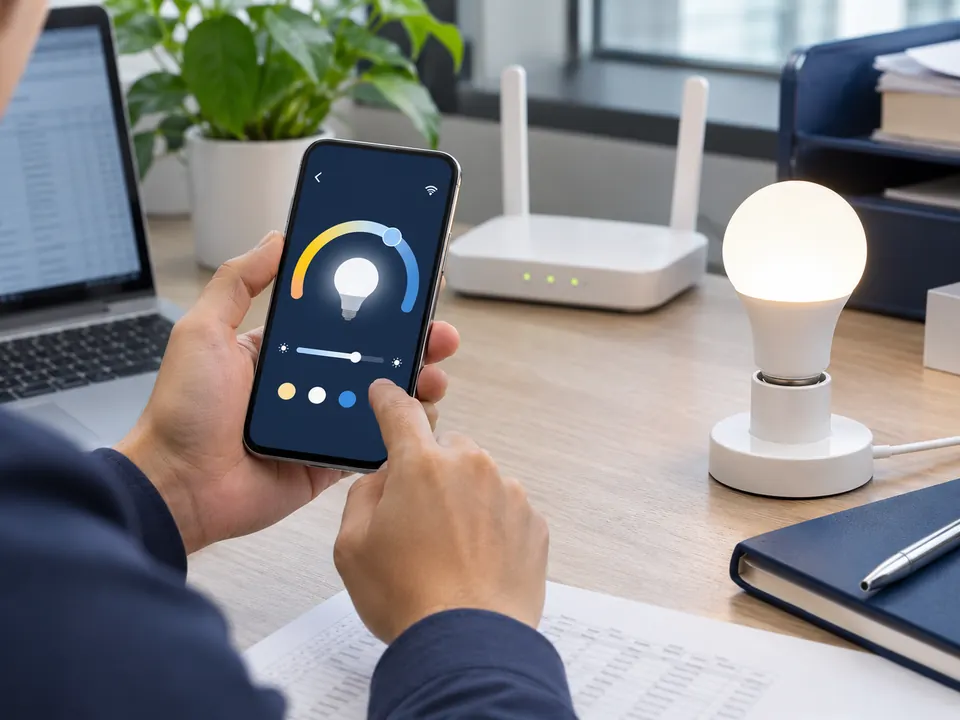
Check Functions Available Without Internet
Test what the bulb does with wall power present but internet unavailable, and then after the router reconnects. Basic switch use, local app control, schedules and cloud features may behave differently by model and platform. Record the result for customer support. Do not promise offline operation without a test of the selected configuration.
Related buyer guide: Control-method comparison
Pairing, Reset and Group Control
Pair the bulb from a fresh state, reset it and repeat setup using only the planned manual. Add multiple bulbs if the product claims grouping and test the intended number of zones. Check whether a change to the router or account affects access. These steps reveal problems before a retailer or installer receives the range.
Target-Market Software Expectations
Confirm that the app can be obtained and used in the destination country and that instructions and permissions are appropriate for the customer. Named voice assistants, Matter or other ecosystems require model-specific evidence. Smart-home terminology should not be used as a blanket compatibility claim. Keep a record of the exact app and firmware tested.
Sample Testing Before Retail Launch
Use the final electrical variant, app and packaging instructions. Test initial pairing, light controls, scenes or timers where offered, recovery after power interruption and the user reset path. Compare the sample's physical label and included documentation with the box artwork. Retest if software or controller changes before production.
Plan the market or application: Residential solution
Packaging, QR Codes and Instructions
The box should identify the actual app, network requirement, base, voltage and included items. A QR code should resolve to the intended instructions or app destination when the pack is approved. Keep the customer steps short but complete, and make support information consistent with the tested model and market.
When your brief is ready: Send the app brief
FAQ
Frequently asked questions
Does every smart Wi-Fi bulb work without a hub?
No. Check the selected model's connection method and included equipment. Test setup with the intended router or hub.Will the bulb still work when the internet fails?
It depends on the platform and model. Test wall-switch behaviour and any local functions separately from cloud features.Can I claim Matter or voice-assistant support?
Only when the exact bulb, firmware and app have verified support. Do not infer it from a generic smart-bulb listing.Why test a reset as well as first pairing?
Customers may change routers or accounts. A repeatable reset and setup path is essential for instructions and after-sales support.RELATED RESOURCES
Continue your product review
Wall Dimming vs Step Dimming: Which Method Should Buyers Choose?
Compare wall-dimmer and switch-step LED bulbs, low-level performance, compatibility testing and the specification needed for a wholesale order.Read articleHow to Test a Remote-Control LED Bulb Sample
A practical test sequence for bulb-and-remote pairing, functions, range, multi-bulb control, restart behaviour and selling-unit approval.Read articleRGB vs RGBW vs RGB+CCT LED Bulbs
Compare colour channels, useful white light, controllers and sample tests when choosing RGB, RGBW or RGB+CCT LED bulbs.Read articleHAVE A PRODUCT IN MIND?
Discuss Your LED Bulb Requirements
Share your market, selected product, required functions, quantity and packaging needs so the exact configuration can be reviewed for a quotation.